
Generate DOCX, XLSX, and PDF Documents in Your Browser
Use Document Studio to build a letter, memo, invoice, report, or résumé from editable blocks and export real Word, Excel, HTML, Markdown, or print-ready PDF, locally.
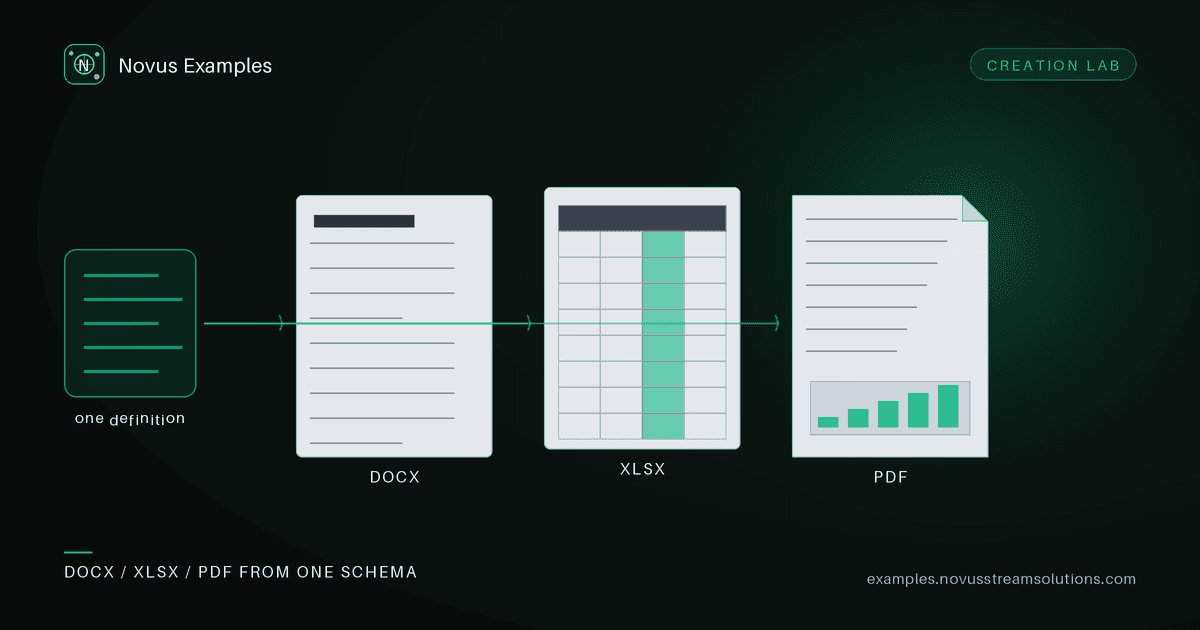
Testing a document parser, a converter, or an import pipeline usually means hunting for a Word file with the right structure or an Excel sheet with a real table. Document Studio lets you build the document you need from simple blocks and export it as a genuine Office file, no template hunting, no upload.
Start from a starter (blank, letter, memo, invoice, report, or résumé), and edit a document as a stack of blocks: headings, subheadings, paragraphs, bulleted lists, tables, and key/value pairs, plus dividers. Add, reorder, and delete blocks, and a live sandboxed preview shows the rendered result as you go. Your draft is kept in this browser only.
Document Studio produces the actual formats:
- DOCX: a real Word document with proper headings, paragraphs, lists, and tables (multi-line paragraphs keep their line breaks), via a lazy-loaded engine.
- XLSX: when the document contains a table, export it as a real Excel workbook, one sheet per table. The button only appears when there's a table to export.
- HTML and Markdown: clean, portable text formats for the web or a repo.
- Print / PDF: render to a print-ready page and save as PDF from the browser's print dialog.
Because these are genuine file formats, not screenshots, they're valid fixtures for testing parsers, converters, and importers.
It matters that these are proper OOXML packages rather than HTML with a .docx extension, because the two behave completely differently under test:
- A DOCX is a ZIP. Your parser has to open the container, find
word/document.xml, and resolve relationships in_rels. A renamed HTML file skips all of that, so it exercises none of the code that actually breaks in production. - Headings are styles, not font sizes. A real heading carries
pStylereferencing a named style. Converters that infer structure from visual size produce a flat document from a fake fixture and a correctly nested outline from a real one, and only the second tells you whether your importer works. - Tables carry structure. Grid columns, spans, and cell properties are all explicit. This is where most converters fail, and a table you can specify the exact dimensions of makes those failures reproducible.
- XLSX types are real types. A cell containing a number is stored as a number; dates are serial values with a format. Pipelines that stringify everything look fine until they hit a real workbook.
A few structures are much easier to build here than to find, and each targets a specific parser weakness:
- A deep heading tree (H1 through H4, nested properly) to check outline extraction and table-of-contents generation.
- A table with known dimensions, so a row/column count assertion is exact rather than approximate.
- Multi-line paragraphs, which keep their internal line breaks on export. Soft breaks inside a paragraph versus separate paragraphs is a distinction most converters get wrong, and it changes the text your pipeline extracts.
- A key/value block, the shape metadata extractors are usually pointed at.
Because the same document exports to DOCX, XLSX, HTML, Markdown, and PDF, you can build one structure and check that every converter in your chain agrees about it, a differential test that is far more informative than any single-format check.
Document Studio is the editable side of the document templates and the ready-made document fixtures. Grab a fixture when a standard file will do; open Studio when you need a specific structure (a table with known dimensions, a heading tree, a key/value block) to drive your own tests.
- Open Document Studio and choose the starter closest to your target.
- Edit the blocks; add a table if you want an XLSX export; watch the preview.
- Export DOCX or XLSX for Office pipelines, HTML/Markdown for text, or Print/PDF for a fixed layout.
- Feed the file into your parser or converter. Re-open Studio to tweak anytime.
Open Document Studio, or browse the document templates. Everything you export is free to use, no attribution required.
Continue this workflow
Was this article helpful?
Found an error? Send a correction.