
Build a Fillable Form, and Export a PDF, in Your Browser
Use Form Studio to design a form, preview it live, and export standalone HTML, a JSON schema, or a real fillable-PDF AcroForm, with nothing uploaded.
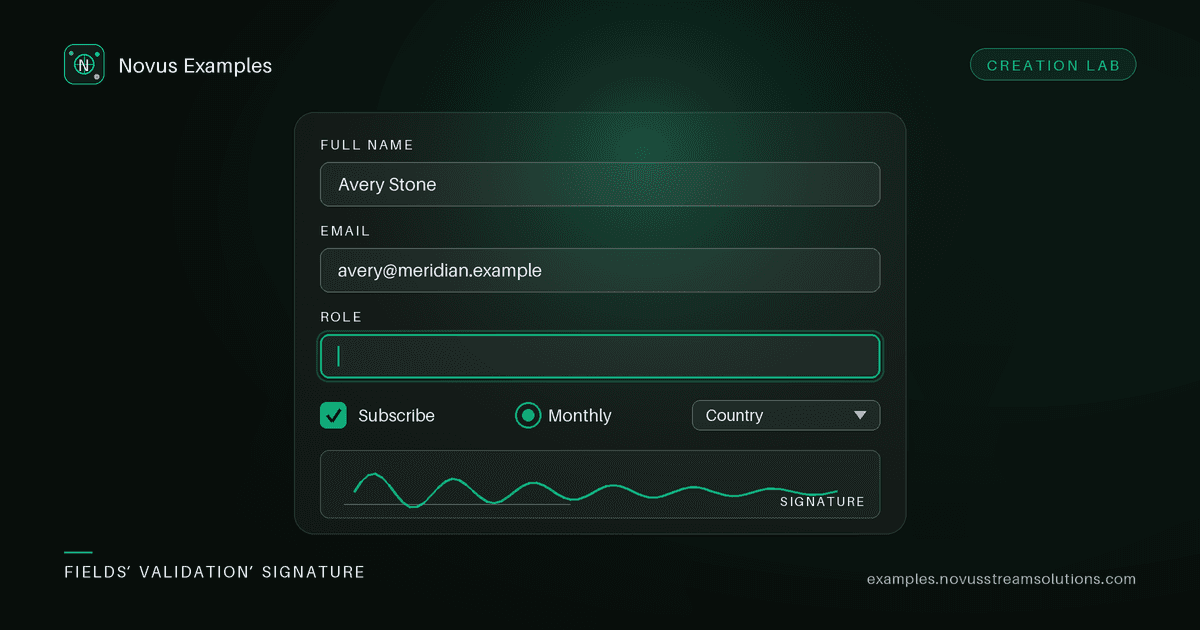
Downloadable form fixtures are useful right up until you need your fields. Then you're hand-editing HTML or wrangling a PDF library just to get a checkout form with the right radio group. Form Studio closes that gap: build the form you actually need in the browser and export it in the format your test wants.
Pick a starting point (blank, contact, sign-up, survey, or feedback), and you get a live editor with a matching preview. Add fields across sixteen input types (text, email, tel, number, date, select, checkbox, checkbox group, radio group, range, colour, file, and more), reorder them, mark any of them required, and set placeholders, help text, and options. The preview re-renders as you type, sandboxed so its script can't touch the page.
The same form exports three ways:
- Standalone HTML: a self-contained file with inlined CSS, native HTML5 validation, and a tiny submit script. No external requests, works offline. Drop it into a scraper or autofill test.
- JSON schema: a clean description of the form's fields, for driving data-generation or asserting structure.
- Fillable PDF: a real AcroForm with text fields, dropdowns, checkboxes, and radio groups as actual widgets, laid out with page breaks. Exactly what you need to test a PDF form filler.
Everything is generated locally with lazy-loaded libraries. Nothing is uploaded to a server.
The reason to export the same form three ways is that each one exercises a different layer, and a bug in one is invisible in the others:
- HTML tests your detector. Can the tool find the fields, read their labels, and understand which are required? Because the export carries native HTML5 validation, you also get the constraint behaviour for free (
required,type="email",min/maxon a number or range), which is what a browser autofill actually reacts to. - JSON schema tests your contract. Assert structure without parsing markup: field count, names, types, required flags. When someone adds a field, this is the artefact that makes the diff obvious.
- Fillable PDF tests your filler. AcroForm widgets are a genuinely different problem from HTML inputs (named fields, appearance streams, page-break layout), and a tool that handles one often cannot handle the other.
Exporting all three from one definition means the three tests are guaranteed to describe the same form, which is the part that decays fastest when fixtures are maintained by hand.
If you are building a fixture to break something rather than to demo something, these are the fields worth including:
- Radio groups, where several inputs share one name and only one value is submitted. Detectors that treat every input independently will fill all of them.
- Checkbox groups, where several inputs share a name and all checked values submit. This is the exact inverse of a radio group and the two are routinely confused.
- Select with an empty first option: the "-- choose --" placeholder. A filler that picks index 0 submits an empty value while reporting success.
file, which cannot be filled programmatically at all for security reasons. Your tool should identify it and skip it, not throw.rangeandcolor, which always have a value even when the user has touched nothing. Tests that assert "empty until filled" fail on these two and the failure is in the test, not the form.
Mark a couple of fields required and leave the rest optional, so you can check that your validation path fires on the right subset rather than on everything at once.
Form Studio is the editable companion to the ready-made form fixtures and the form-testing fixtures. Use a fixture when a standard form will do; open Studio when you need a specific field set, a particular validation state, or a fillable PDF with named fields for your own tests.
- Open Form Studio and pick the starter closest to what you need.
- Add and reorder fields; set required flags, options, and help text; watch the preview.
- Export HTML for a live target, JSON for structure, or a fillable PDF for a form filler.
- Wire the exported file into your test. Re-open Studio any time to adjust. Your draft is saved in this browser.
Open Form Studio, or start from the live form examples. Everything you export is free to use, no attribution required.
Continue this workflow
Was this article helpful?
Found an error? Send a correction.